
FeaturesProduct capability
Appointments and online booking on one calendar, with no double-booked doctor
DrOnlineIQ keeps one calendar per doctor. Reception books from the Appointments page, and visitors book from the clinic's own booking page, which stays off until the owner turns it on. Both go through one lock per clinic and doctor, so a doctor cannot be booked twice at the same time, even when they work at more than one branch.
Create a free 14-day trial account with demonstration data, or ask for a demo. Do not enter real patient data during the trial.
Who it serves and what it solves
A doctor who works at two branches
The doctor has one calendar, whatever the branch. A time taken at one branch shows as taken at the other, and the database refuses a second booking for the same minute.
A front desk and a booking page at the same time
A visitor and a receptionist can reach for the same time in the same second. One of them gets it; the other is told it is taken and picks another.
Doctors with different working hours
Each doctor has their own hours, buffers, minimum notice and how far ahead patients can book. Visitors are offered only the times that fit those rules.
A clinic moving from a paper diary
Reception books in four short steps: find the patient by name, phone or file number (or create one with just a name), then choose the doctor, the service and the time.

A realistic day
The owner prepares the hours
Under Hours and services the owner sets each doctor's hours. Under Online booking the owner ticks the services visitors may book, turns the page on and copies the link.
A visitor books in the evening
The visitor opens the link on a phone, chooses a service, a doctor, a date and a free time, writes a name and phone number and ticks the consent box. The time is booked at once without waiting for staff, and the page shows the confirmation and a calendar file.
Reception sees the whole picture
Next morning the appointment is on Today and Appointments with the Online badge, next to the ones staff booked.
A patient calls to move a time
Reception opens the appointment, changes the date or time and saves. The change goes through the same lock and the same check: if the doctor has another visit then, it is refused.
The patient arrives
Reception presses Check in on the appointment, whether staff or the patient booked it. The patient gets a ticket number and appears to the doctor as the next patient.
Who does what
- Reception
- Books, moves and cancels appointments, reads the day and week views, and uses the waiting list for patients who want an earlier time.
- Practitioner
- Opens their own schedule and sets their hours and booking rules. Cannot switch online visits on for themselves; that is the owner's decision.
- Owner
- Turns online booking on and chooses the bookable services, sets each doctor's services and prices, and alone switches online visits on for a doctor.
What the product does today
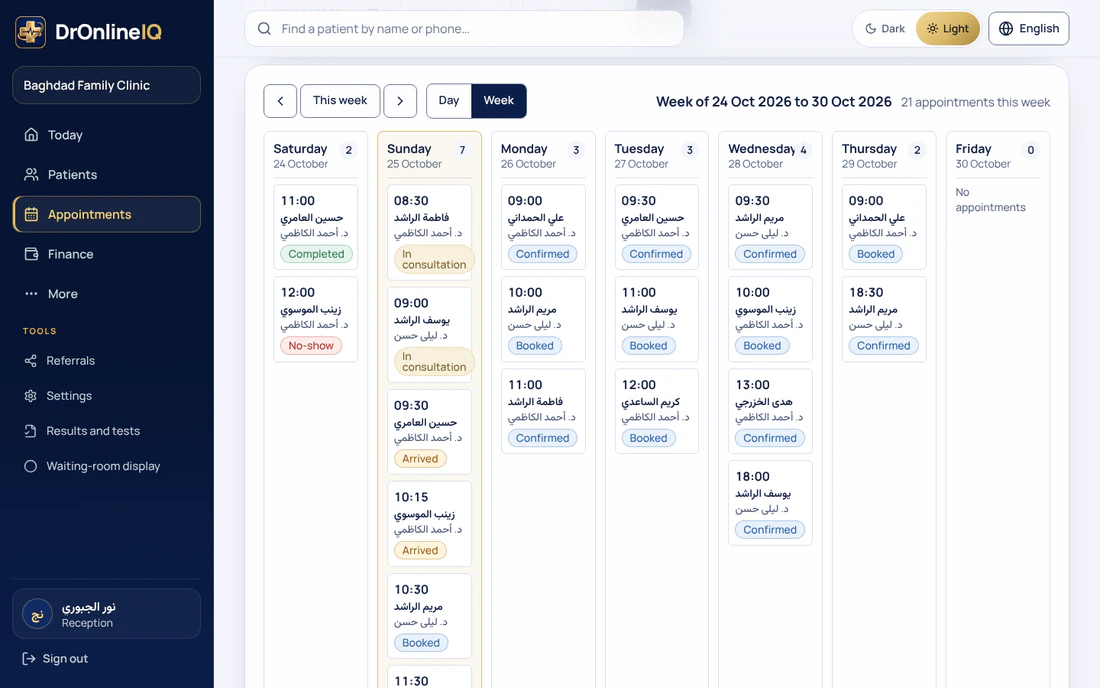
Desk booking in four steps: the patient, then doctor and service, then date and time, then confirm. Day and week views, filters by doctor or branch, and moving or cancelling an appointment.
Appointments at the front deskOne lock per clinic and doctor, not per branch: the overlap check and the save happen in one step, so two bookings for the same minute cannot both be saved. The desk may choose Book anyway over a doctor's leave or a room in use, but never over another visit of the same doctor.
A public booking page that is off until the owner turns it on. A visitor books a confirmed time without an account, and the clinic sees it with an Online badge. Nothing is charged on the page; the patient pays the clinic directly.
Set up online bookingRules per doctor: in-person and online hours kept apart, the step between times, time kept free before and after a visit, minimum notice and how far ahead visitors can book. The time is checked once when it is shown and again inside the lock when it is saved.
Doctor schedules: hours and booking rulesA waiting list for patients who want an earlier time, oldest first, with a button that turns a line into an appointment when a time opens.
Appointments at the front desk
The rules each doctor can set
They live under Hours and services. The owner opens it for any doctor, and a doctor opens their own schedule.
- Working hours by weekday, in person or online, for one branch or all branches
- The step between offered times, in minutes
- Preparation time before each visit and wrap-up time after it
- Minimum notice before a visit, and how many days ahead it can be booked
- A daily limit on online visits (leave it empty for no limit)
- The doctor's own services, each with a duration and an optional price
Inside the product
Demonstration data: no real name, phone number or patient.
A doctor's public page as a visitor sees it: name, specialty, a short introduction, languages spoken, training as stated by the doctor, services with duration and fee, and a booking button.
Setting up and moving over
- Create the doctors and branches, then set each doctor's hours under Hours and services. A doctor with no in-person hours keeps the earlier 08:00 to 20:00 day, so nothing stops working.
- To take bookings from the public, the owner turns on Online booking, ticks the services and shares the link on WhatsApp, on social pages or as a QR code. Nothing is shown until at least one service is ticked.
- If you have a paper diary or an Excel file, enter future appointments with New appointment. We do not claim an import of appointments from other systems.
- Visitors install nothing: booking works in the browser of any phone. The clinic needs an internet connection, and we do not describe offline use.
Limits worth knowing
- Working hours, buffers, minimum notice and horizon decide what visitors can book online. The desk's time list shows the doctor's taken times across all branches and does not restrict staff to working hours.
- A visitor cannot move or cancel their own appointment; they are asked to call the clinic and reception edits it. There is also a limit on how many upcoming online appointments one phone number can hold.
- Booking at the desk sends no message to the patient, so staff tell them the time.
- There is no pay-before-confirm and no temporary hold on a time: a booking is confirmed as soon as it is made, and the patient pays the clinic directly.
Questions
Can a visitor and a receptionist book the same minute of one doctor?
No. Both go through one lock for that doctor in that clinic, so one is saved and the other is told the time is taken. This has been tested with many simultaneous attempts on real PostgreSQL, including attempts through two branches.
Do appointments made by patients follow a different path from staff bookings?
No. Both are saved with the same status, appear on Today and Appointments, are moved and cancelled from the same page, are checked in with the same button and then follow the same queue: arrived, with the doctor, completed. The only difference is the Online badge on what a visitor booked.
Can a visitor book with any doctor in the clinic?
A visitor sees active doctors who work at one or more branches (or every doctor if the clinic has no branches), and only the services switched on for booking. If the clinic's subscription ends, the booking page closes.
Does the public page see patient data?
No. It only says whether a time is free, and no patient name leaves it. A patient file is not chosen by phone number alone: an existing file is used only when the full name and phone match exactly one file, otherwise a new file is made.
Does booking work offline?
No. The app and the public page both need an internet connection, and we do not claim offline use.
Price
Plans are annual. Prices are read from the same list that checkout uses.
Essential
499,000 IQD
/ year
Professional
699,000 IQD
/ year
Business
1,200,000 IQD
/ year
Enterprise
By agreement
Try it in your own practice
Create a free 14-day trial account with demonstration data, or ask for a demo. Do not enter real patient data during the trial.
Content last updated: 2026-10-24