
FeaturesProduct capabilityEarly access
A waiting-room TV that shows ticket numbers and rooms, never patient names
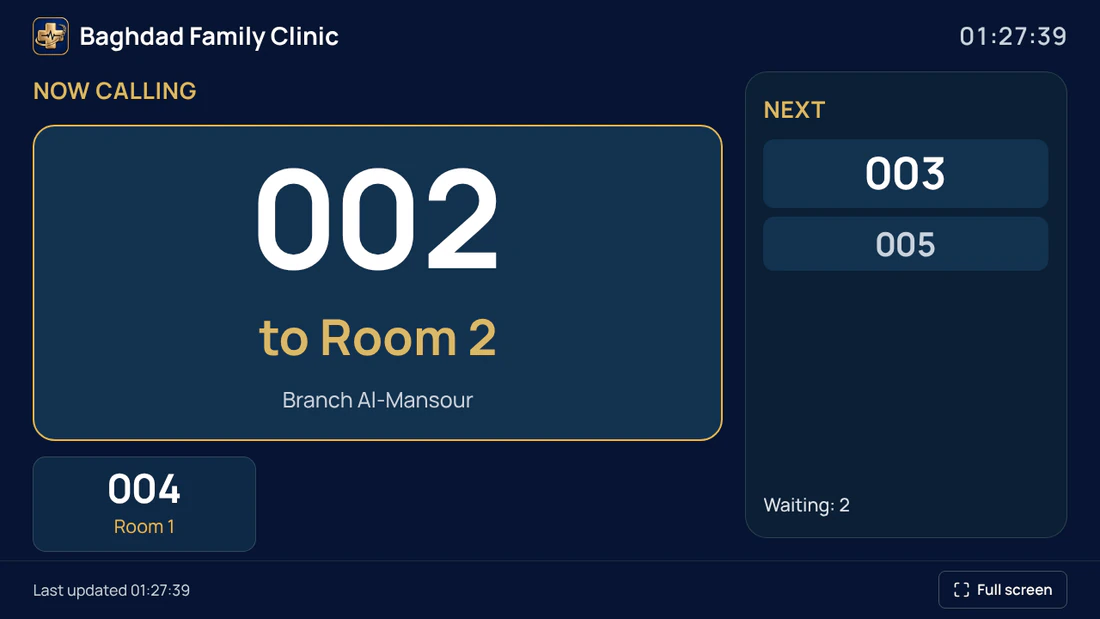
The waiting-room display shows the ticket being called and its room, the earlier calls, the next tickets and how many are waiting, on a screen paired to your clinic with a short code. The screen asks the server every few seconds and shows no patient name, phone number or medical detail. It is in early access: it has been tested in a desktop browser, not on any particular TV model.
Create a free 14-day trial account with demonstration data, or ask for a demo. Do not enter real patient data during the trial.
Who it serves and what it solves
A front desk that does not want to call out names
Calling by ticket and room keeps names off the wall. The screen is built from ticket numbers and room names only, so there is nothing else for it to show.
A clinic with several rooms or branches
You can pair one shared screen, or one per branch, room or practitioner, with an optional prefix of one or two letters so tickets read A-024.
A clinic with an ordinary TV
A browser on the TV with internet is enough, or a computer connected to the TV with an HDMI cable. The TV does not need to be on reception's network.
An owner who cares who can see what
The screen is view-only and has no sign-in. It pairs with a code that works once, and you can disconnect it at any time; it stops within seconds.
A realistic day
Set-up
The owner or reception opens More, then Waiting-room display, adds rooms with Add room, then Add a screen: a screen name, the branch, rooms and practitioners, and options such as sound, prefix and language.
Pairing on the TV
The page shows an 8-character code that is valid for 15 minutes and works once. On the TV you open the address, type the code and press Connect. The screen stays connected for up to a year or until it is disconnected.
Patients arrive
Reception checks them in, and they join Waiting with a ticket number. The next tickets appear on the screen in the real queue order, with the count of those waiting.
Calling
On Today reception chooses the room beside the patient under Waiting and presses Call. The ticket and room appear on the TV within a few seconds and stay until the doctor starts the consultation or the call is cancelled.
Calling again
Call again highlights the ticket once more with a flash and an optional chime. Cancel call puts the patient back to waiting, and the screen stops showing it.
Who does what
- Reception
- Adds and disconnects rooms and screens, and calls tickets, calls them again or cancels a call from Today.
- Practitioner
- Calls tickets from their own card, and calls again or cancels a call. Does not create or disconnect screens.
- Owner
- Adds and disconnects rooms and screens like reception, and decides whether the practitioner's public name appears on each screen.
What the product does today
The called ticket and room in large type (for example A-024 to Room 3), up to three earlier calls, the next tickets in the real queue order, the count of those waiting, the clinic name and clock, and a Last updated time. The practitioner's public name is optional, and appears only when the screen's own switch is on and the practitioner has published their page; the account name is never shown. The screen shows no patient name, phone, file number, diagnosis, note, payment or appointment detail.Early access
Tried in a desktop browser only; no Smart TV or TV browser has been tested, so try your own TV before relying on it.
Set up the waiting-room queue displayPairing with an 8-character code that is valid for 15 minutes and works once, and the screen stays view-only. You can issue a new code or revoke the screen, and after revoking, the screen says it was disconnected. If the clinic's subscription is not active, the display stops. A two-tone chime made by the browser, optional, which works only after someone presses the sound button on the TV itself. There are no spoken announcements.Early access
Tried in a desktop browser only; no Smart TV or TV browser has been tested, so try your own TV before relying on it.
What the clinic brings
The display is software only. The clinic supplies these things itself, and they are not part of the subscription.
- A TV or screen with a browser and an internet connection (or a small computer, or the reception computer, connected with an HDMI cable)
- A way to type the code on the TV: a remote or a keyboard
- On the reception computer: Windows Extend mode, not Duplicate, so patient records never show in the waiting room
- Named rooms in the screen settings, and a test patient to try a call before relying on it
Inside the product
Demonstration data: no real name, phone number or patient.
Reception's queue in three columns: patients waiting with a call button and room choice, patients expected today with a check-in button, and patients with the doctor.
Setting up and moving over
- Start by trying your own TV: open the screen address in the TV's browser and type the code. If it does not work, connect a computer to the TV with an HDMI cable.
- Never open the clinic dashboard on the TV. Open only the screen address.
- The code is valid for 15 minutes, works once and is not shown again after you close it. A wrong, expired or used code gets the same message on purpose; press New code for another.
- Test with a test patient: check them in, call them, check that the Last updated time keeps moving, and unplug the network briefly to see the connection-lost message and the recovery.
Limits worth knowing
- No Smart TV model and no TV browser has been tested. The screen has been tried in a desktop browser only, so we do not promise that your TV will work; try it before relying on it.
- The screen asks the server every few seconds (about 4), so a call appears after a moment, not at once.
- There are no spoken announcements. There is an optional chime that must be switched on with a click on the TV each time the screen opens.
- The screen, cables, an HDMI computer and installation are not part of the subscription.
Questions
Which TVs work?
We cannot say. No TV model and no TV browser has been tested; the display has been tried in a desktop browser only. Open the screen address in your own TV's browser before relying on it, and if that fails, a computer connected with an HDMI cable is the alternative.
What does the screen show about patients?
Only the ticket number and the room name, and optionally the practitioner's public name if they published their page. No patient name, phone number, file number, diagnosis, note, payment or appointment detail.
What happens if the internet drops?
The screen keeps the last list it received. After about 15 seconds without an answer it says “Connection lost. The list may be out of date”, with the time of the last good update, and returns to normal when answers arrive again.
Does the TV have to be on reception's network?
No. The TV needs a browser and internet, not a network shared with the reception computer. The link between them is the short code.
The TV was lost, stolen or replaced. What do we do?
Press Revoke on that screen's line. The screen stops within seconds and says it was disconnected. To move the screen to a new TV, use New code.
Price
Plans are annual. Prices are read from the same list that checkout uses.
Essential
499,000 IQD
/ year
Professional
699,000 IQD
/ year
Business
1,200,000 IQD
/ year
Enterprise
By agreement
How-to guides
Try it in your own practice
Create a free 14-day trial account with demonstration data, or ask for a demo. Do not enter real patient data during the trial.
Content last updated: 2026-10-24